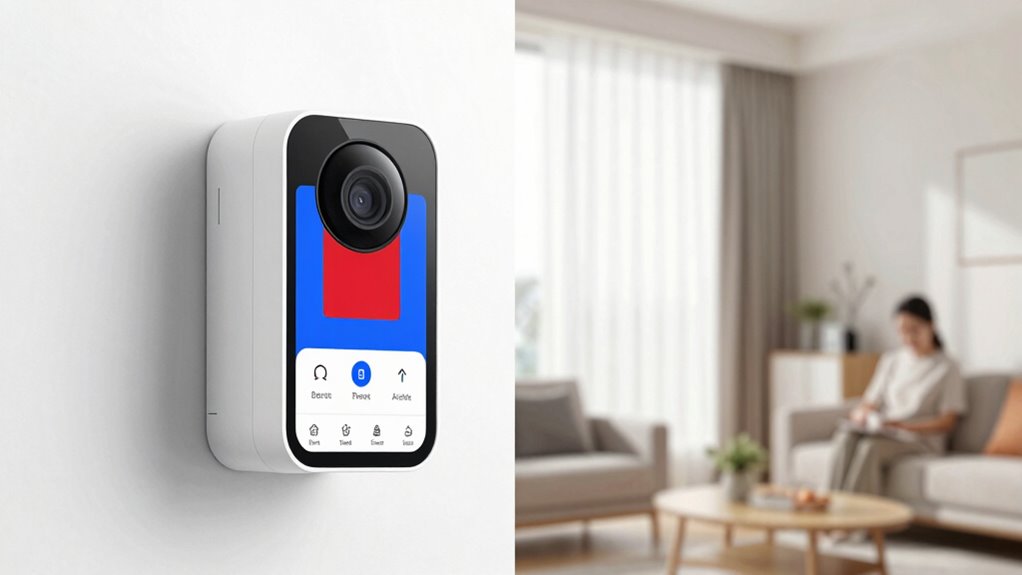
To stop phantom notifications, you need to properly set up your motion zones and adjust sensitivity levels. Focus on defining specific areas that matter, avoiding busy backgrounds or irrelevant spaces. Lower sensitivity for small animals or shadows and test your camera to fine-tune alerts. Regularly review your alert history to catch false triggers and update zones accordingly. Keep optimizing these settings for accurate notifications—if you want to learn more, keep going.
Key Takeaways
- Properly define and customize motion zones to focus alerts on relevant areas, reducing false notifications from irrelevant movements.
- Adjust motion sensitivity gradually to balance between detecting genuine activity and avoiding minor triggers.
- Regularly test and review alert history to identify false triggers and fine-tune zones and sensitivity accordingly.
- Use activity zones and detection filters to exclude areas prone to false alarms, such as busy streets or neighbor yards.
- Continuously update and calibrate your setup based on activity patterns to ensure alerts are meaningful and timely.

Motion zones are a powerful tool for customizing your security camera’s focus, but if not set up properly, they can lead to frequent false alerts. When you’re trying to prioritize certain areas, adjusting motion sensitivity and alert calibration is essential. If your motion sensitivity is set too high, your camera might pick up minor movements—like leaves rustling or shadows shifting—causing unnecessary notifications. Conversely, if it’s too low, important motion events might go unnoticed. Finding that perfect balance is key to reducing false alerts and ensuring you’re notified only when it truly matters.
Start by accessing your camera’s settings and locating the motion detection section. Here, you’ll see options to adjust motion sensitivity. You want to set this so that your camera responds to significant movement within the motion zones you’ve designated, but ignores minor or irrelevant motions. A good rule of thumb is to lower the sensitivity if you notice frequent false alerts caused by small animals, passing cars, or trees swaying in the wind. Increasing sensitivity might be necessary if your camera isn’t detecting legitimate activity, but do so gradually to avoid over-triggering.
Alert calibration is another vital step. Once you’ve defined your motion zones, test the setup by walking through the area or simulating movement. Review the alerts you receive and verify if they correspond to real activity. If you notice false alarms, revisit your motion sensitivity settings and fine-tune them accordingly. Many cameras also allow you to customize alert zones explicitly, so only specific areas within your camera’s view trigger notifications. This helps eliminate false alerts caused by activity outside the critical areas you care about, like a busy street or a neighbor’s yard. Additionally, understanding the contrast ratio of your camera can help you better interpret motion events, especially in low-light conditions, reducing false positives.
It’s also helpful to leverage features like activity zones and detection filters if available. These tools help you refine what triggers an alert, so you don’t get notified about irrelevant movements. Regularly reviewing your camera’s alert history allows you to identify patterns causing false alarms. Adjust your motion sensitivity and alert calibration based on these insights, ensuring your notifications stay relevant and timely.
Frequently Asked Questions
How Do I Update My Security Camera Firmware?
To update your security camera firmware, start by opening the camera’s app or web portal. Look for the firmware update option in settings, then select it to begin the process. If needed, perform a camera reset after updating to guarantee the new firmware functions correctly. Keep your device plugged in and connected to Wi-Fi during the update to avoid interruptions. This ensures your camera stays secure and operates smoothly.
Can I Connect Multiple Cameras to One App?
Sure, you can connect multiple cameras to one app—it’s like trying to herd cats, but with tech. Just make sure they’re compatible and support app synchronization. You’ll need to check camera compatibility first, so they all speak the same language. Once connected, your app becomes a command center, seamlessly managing all cameras. It’s a clever way to keep an eye on everything without juggling multiple apps or devices.
What Is the Best Way to Reset My Camera?
To reset your camera, start by locating the reset button, usually found on the back or bottom. Press and hold it for about 10-15 seconds until the camera restarts. This camera reset helps resolve common issues and is a key troubleshooting tip. Make certain your camera is powered on before resetting. If problems persist, check your network connection or consult the user manual for specific instructions.
How Do I Improve Night Vision Clarity?
Night vision clarity improves when you optimize infrared enhancement and low light adjustment. You should clean your camera lens to reduce glare and guarantee unobstructed IR light. Adjust the infrared settings for stronger illumination, and tweak the low light sensitivity to enhance visibility in dark conditions. Using a camera with higher IR range also helps, making your footage sharper and clearer even in complete darkness.
Are There Privacy Concerns With Cloud Storage?
Yes, there are privacy concerns with cloud storage. You should consider cloud privacy policies and how your data is protected. Look for services that use strong data encryption both during transfer and at rest, which helps keep your footage secure. It’s wise to review the provider’s privacy practices and adjust settings to control who can access your videos, ensuring your information stays private and protected from unauthorized access.
Conclusion
By fine-tuning your motion zones and adjusting alert settings, you create a more seamless security experience. Think of it as gently guiding your system to focus on what truly matters, reducing those pesky notifications. With a little patience and care, you’ll find your alerts become more meaningful and less intrusive. In the end, it’s about making your setup work smoothly for you—peace of mind, without unnecessary interruptions.