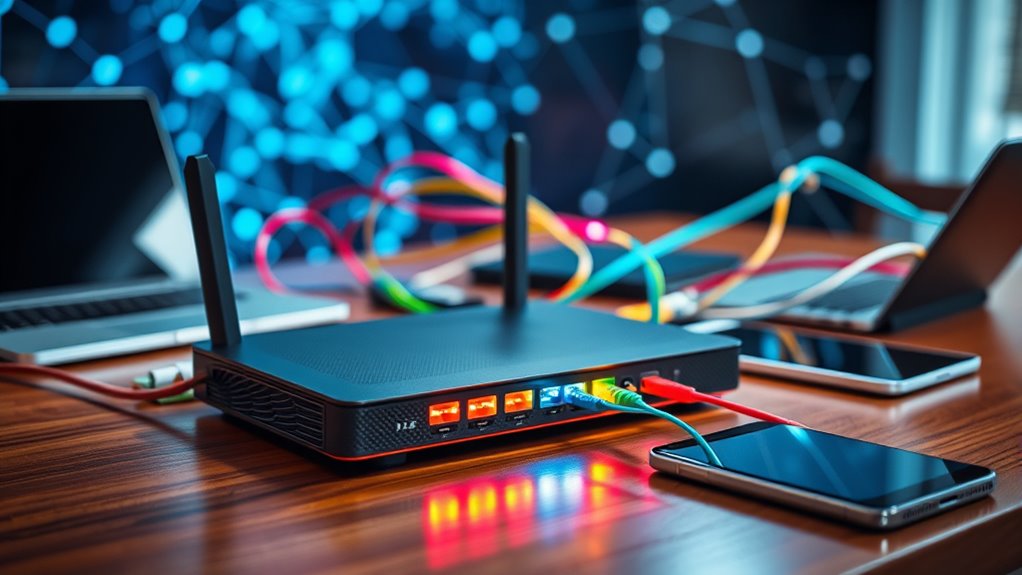

Setting up a VPN on your router encrypts all your connected devices’ traffic at once, giving you thorough online privacy effortlessly. It simplifies security management, so you don’t have to configure each device separately, and guarantees your entire network benefits from strong encryption and protection. Updating your router’s firmware regularly is vital for maintaining security and compatibility. Want to discover the step-by-step process to secure every device in your home or office with ease? Keep exploring to learn more.

Get decor and gifts delivered free with Prime
- Fast, free delivery on millions of items
- Prime Video, Amazon Music and more included
- Member-only deals all year
Key Takeaways
- Installing a VPN on your router encrypts all connected devices’ traffic simultaneously, simplifying security management.
- Updating your router’s firmware ensures compatibility, security patches, and optimal VPN performance.
- Proper configuration of VPN settings on the router guarantees network-wide encryption and privacy.
- Using a VPN on the router protects devices without individual setup, including IoT and smart home gadgets.
- Regular firmware updates and secure credentials maintain ongoing protection against emerging cyber threats.

Setting up a VPN on your router can substantially enhance your online privacy and security by encrypting all traffic that passes through your network. When you configure your router with a VPN, every device connected—whether it’s your phone, laptop, smart TV, or IoT gadgets—benefits from a secure, encrypted connection without needing individual setups. This approach simplifies protecting multiple devices and guarantees consistent privacy coverage across your entire network.
To get started, you need a compatible router and a reliable VPN service. Many modern routers support VPN configurations directly through their firmware, but some might require you to update or replace the firmware to *access* this capability. Firmware updates are *essential* because they often bring important security patches, new features, and enhanced compatibility, making your VPN setup more stable and secure. Before installing any updates, back up your current settings to avoid losing configurations if something goes wrong.
Ensure your router is up to date and supports VPN configuration for a secure, reliable setup.
Once your router’s firmware is up to date, you’ll typically access its admin interface via a web browser. From there, you can enter the VPN settings provided by your service, such as server addresses, your login credentials, and any required protocols. Setting up a VPN on your router involves inputting these details correctly and enabling the connection. Some routers offer straightforward interfaces for VPN configuration, while others might require manual entry of specific parameters. Follow your VPN provider’s instructions carefully to *guarantee* proper network encryption is established.
Network encryption is the backbone of your VPN’s security. It transforms your data into an unreadable format, preventing outsiders from intercepting or deciphering sensitive information. When you route all traffic through the VPN, it means every packet of data leaving your devices is encrypted before it reaches the internet, adding an extra layer of security against hackers, snoopers, or even government surveillance. This setup is especially useful if you frequently connect to public Wi-Fi, where unsecured networks are prime targets for cyberattacks.
Regular firmware updates play a *crucial* role in maintaining this security. They patch vulnerabilities that could be exploited by cybercriminals and improve the overall robustness of your VPN connection. By keeping your router’s firmware current, you *guarantee* that your network encryption remains resilient against emerging threats, and your device stays compatible with the latest security standards. Staying informed about the latest technology developments helps ensure your setup remains effective and secure.
Products Worth Considering

Bose Lifestyle Ultra Wireless Home Speaker

Samsung 42-Inch S90H OLED 4K Smart TV Bundle

Dyson Ball Animal 3 Corded Upright Vacuum
As an affiliate, we earn on qualifying purchases.
Frequently Asked Questions
Can I Use a VPN on a Guest Wi-Fi Network?
Yes, you can use a VPN on a guest network, but it depends on your router’s VPN compatibility. Some routers support VPN connections for all connected devices, including a guest network, while others don’t. If your router allows VPN setup on the main network, it generally extends protection to your guest network too. Check your router’s specifications to see if it supports VPNs on guest networks before trying to set one up.
How Does a VPN Affect My Internet Speed?
You might notice that a VPN can slow down your internet speed due to encryption impact and latency increase. As your data gets encrypted, it takes more time to transmit, which can cause buffering or lag, especially during high-demand activities. While a VPN enhances security, expect some decrease in speed. However, choosing a reliable provider and server location can minimize these effects, keeping your browsing relatively smooth.
Is VPN on a Router Legal Everywhere?
Thinking of VPN legality like a map with uncharted territories, you’ll find it varies worldwide. Some countries fully embrace VPNs, while others restrict or ban them, especially in strict router configurations. Always check local laws before setting up a VPN on your router, as legal restrictions can differ widely. It’s your responsibility to stay compliant with your country’s VPN legality and ensure your router configuration respects those rules.
Can I Run Multiple VPNS Simultaneously on One Router?
You can run multiple VPNs on a single router using techniques like split tunneling and VPN chaining. Split tunneling lets you direct specific traffic through different VPNs, while VPN chaining links multiple VPNs for layered security. However, setting this up can be complex and may impact performance. Make certain your router supports these features, and carefully configure your network to avoid conflicts and ensure seamless security across all devices.
How Do I Update VPN Firmware on My Router?
Imagine you’re upgrading your router’s firmware like flashing a new firmware version on a vintage computer. To update your VPN firmware, first check its firmware compatibility with your router model. Then, follow the update procedures found on your router’s admin panel or manufacturer’s website. Usually, you’ll download the latest firmware file, access your router’s settings, and upload the update. Always back up your settings before proceeding.
Conclusion
By setting up a VPN on your router, you protect all your devices effortlessly. It’s like sealing your digital fortress with one strong wall instead of individual gates. While each device can have its own security, a router VPN offers a unified shield, saving time and reducing complexity. In a world full of threats, securing your entire network in one step is the smart move—simple, powerful, and peace of mind all at once.