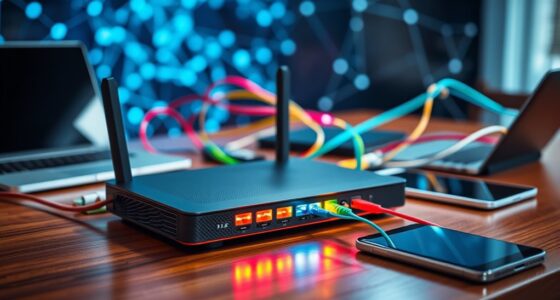
Your router’s capacity to support devices depends on your internet speed, router specifications, and what each device does. Streaming, gaming, or video calls require more bandwidth than browsing or emails. Overloading can cause slowdowns or dropped connections, especially if interference is present. To get the most out of your network, you need to balance device numbers with activity types and optimize settings. Keep exploring to learn key tips on managing your network effectively.

Get decor and gifts delivered free with Prime
- Fast, free delivery on millions of items
- Prime Video, Amazon Music and more included
- Member-only deals all year
Key Takeaways
- Router maximum connection capacity varies; check its specifications for the number of supported devices simultaneously.
- Actual device support depends on each device’s bandwidth needs and activity type, such as streaming or browsing.
- Bandwidth limitations from your internet plan restrict the total number of devices that can operate effectively.
- Wireless interference and signal quality can reduce the effective number of devices your network can handle.
- Implementing QoS settings helps prioritize critical devices and optimize overall bandwidth distribution.

Have you ever wondered how to effectively manage your internet usage without exceeding your limits? If so, understanding how many devices your router can support is essential. The number of devices your router can support depends on several factors, including your internet plan, the router’s specifications, and the demands of each device. When multiple devices connect simultaneously, issues like wireless interference can arise, leading to slower speeds and unstable connections. To mitigate this, you need to focus on optimizing your network’s quality of service (QoS). QoS optimization allows you to prioritize certain types of traffic, such as streaming or work-related applications, ensuring that critical devices or activities get the bandwidth they need. This way, you prevent less important devices from hogging resources and causing congestion.
Understanding the concept of wireless interference is key here. Wireless interference occurs when signals from different devices or neighboring networks overlap, degrading overall performance. Common sources include cordless phones, microwave ovens, and other Wi-Fi networks operating on the same frequency band. When interference is high, your router struggles to maintain stable connections, especially as more devices join the network. By reducing interference—using dual-band routers, changing Wi-Fi channels, or relocating your router—you can improve performance and support more devices effectively.
Wireless interference from other devices and networks can degrade your Wi-Fi performance.
To determine how many devices your router can handle, start by examining its specifications. Modern routers typically specify a maximum number of simultaneous connections, but real-world performance often varies based on usage. For instance, browsing and email consume less bandwidth than streaming videos or online gaming. If your household uses a mix of these activities, you’ll need to allocate bandwidth wisely. QoS optimization becomes essential here. By configuring your router’s QoS settings, you can assign higher priority to essential devices like work laptops or streaming devices, ensuring uninterrupted service even when multiple gadgets are connected. Additionally, essential oils for network health can conceptually help us understand how maintaining optimal conditions can enhance overall performance.
Another essential aspect is understanding your internet plan’s bandwidth limits. Even if your router can support 20 devices, your internet speed might not be sufficient to handle all simultaneously without slowdown. Regularly monitoring your network’s activity can help you identify devices or applications consuming excessive bandwidth. Using tools like network analyzers or router dashboards, you can fine-tune device priorities and manage traffic effectively.
Products Worth Considering

Ring Alarm 14-Piece Wireless Security System Kit

Ring Alarm 5-Piece Wireless Security System

Arlo Pro Wireless Security Camera, 2K HDR, 6th Generation, 4-Camera Kit
As an affiliate, we earn on qualifying purchases.
Frequently Asked Questions
How Does Router Quality Affect Device Capacity?
Router quality directly impacts how many devices you can connect smoothly. A high-quality router with strong antennas minimizes wireless interference, guaranteeing stable signals for multiple devices. Better antennas improve coverage and reduce dead spots, allowing your network to handle more devices efficiently. Lower-quality routers may struggle with congestion, leading to slower speeds and dropped connections. So, investing in a good router ensures your devices stay connected without sacrificing performance.
Can Bandwidth Be Increased With a Better Plan?
Yes, upgrading your plan can increase bandwidth, helping you avoid network congestion and bandwidth throttling during peak times. A better plan provides more data and faster speeds, allowing multiple devices to operate smoothly without lag or buffering. Keep in mind, though, that if your router isn’t capable of handling higher speeds, you may need an upgrade as well. Combining a better plan with quality equipment ensures maximum performance for all your devices.
How Do I Prioritize Critical Devices on My Network?
Imagine your network as a busy highway—prioritizing critical devices keeps traffic flowing smoothly. You can do this with quality assurance features and device segmentation. Start by assigning priority levels to essential devices in your router’s settings, ensuring they get bandwidth first. This way, your important devices—like work computers or smart home hubs—get the bandwidth they need, reducing lag and improving overall performance.
What Impact Do Smart Home Devices Have on Bandwidth?
Smart home devices, like smart security cameras and voice-activated devices, can profoundly impact your bandwidth. These gadgets often stream data continuously or send frequent updates, which can slow down your network if your router isn’t equipped to handle multiple high-bandwidth tasks. As a result, your smart home security might experience lag, and voice commands could become less responsive. Managing your bandwidth ensures all devices function smoothly without interruptions.
How Often Should I Re-Evaluate My Bandwidth Needs?
You should re-evaluate your bandwidth needs regularly to prevent network congestion and accommodate changing usage patterns. If you notice slow internet speeds, buffering, or dropped connections, it’s time to review your current setup. As your devices or smart home gadgets increase, your bandwidth demands grow too. Reassessing every six months or when adding significant new devices guarantees your network stays efficient and responsive to your needs.
Conclusion
Now that you know how bandwidth works, think of your router as a busy highway. Each device is a car vying for a lane, and too many can cause traffic jams. By budgeting your bandwidth wisely, you keep the flow smooth and prevent crashes. Remember, a well-managed network is like a perfectly synchronized dance—everyone moves freely without stepping on each other’s toes. Keep your devices in check, and your digital highway will run seamlessly.