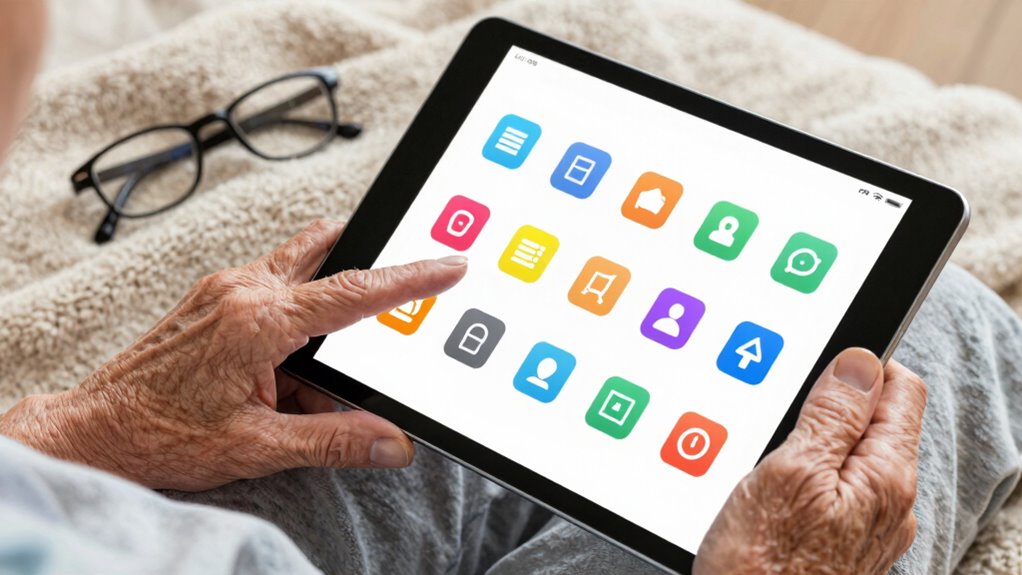

To make a tablet easier for an older adult, start by customizing the display; increase font sizes, boost contrast, and simplify the interface to reduce clutter. Enable voice commands like Siri or Google Assistant for hands-free control of apps and messages. Organize apps for quick access and move frequently used ones to the front. Spend time on setup, adjusting settings to fit their needs, and approach the process patiently. Keep exploring tips to guarantee a smoother, more confident experience.

Get decor and gifts delivered free with Prime
- Fast, free delivery on millions of items
- Prime Video, Amazon Music and more included
- Member-only deals all year
Key Takeaways
- Enable voice commands to allow hands-free operation and simplify app access.
- Customize the interface with larger fonts, high contrast, and simplified layouts for better visibility.
- Adjust display settings to enlarge text and icons, reducing visual strain.
- Organize apps and create shortcuts for frequently used features to streamline navigation.
- Personalize device settings and provide patient guidance for gradual learning and increased confidence.
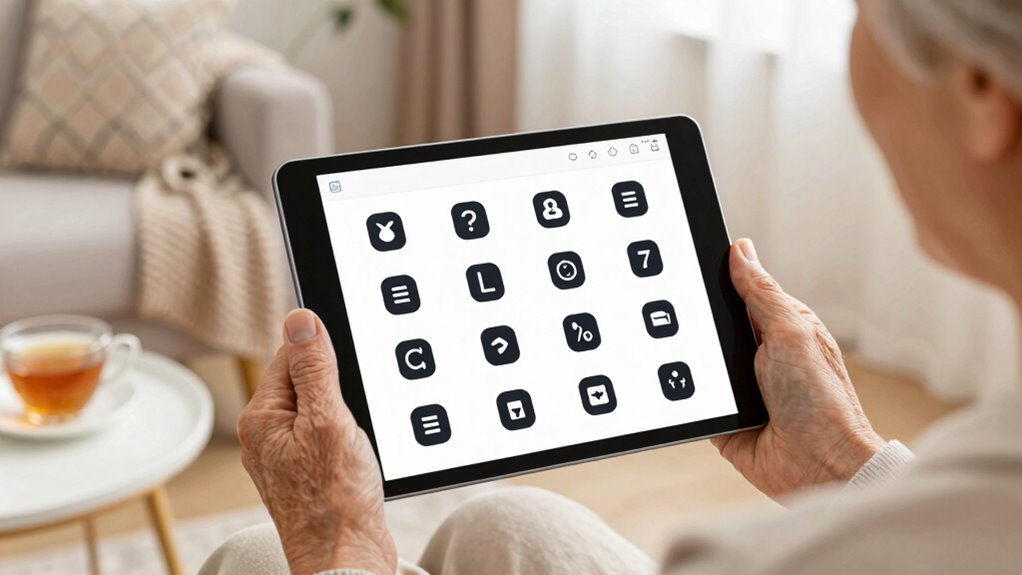
Introducing a tablet to an older adult can be a rewarding experience, but it often requires some adjustments to make the device easier to use. The goal is to simplify navigation and reduce frustration, which means customizing the tablet to meet their needs. One effective way to do this is by enabling voice commands. Voice commands allow your loved one to control the device hands-free, making it easier to open apps, send messages, or find information without having to tap small icons. Most tablets have built-in voice assistant features, like Siri on Apple or Google Assistant on Android. Setting these up is straightforward—you just need to activate the feature and teach the older adult how to use simple voice prompts. This can greatly boost confidence and independence, especially for users who find touchscreens intimidating or challenging. Using voice commands is also helpful for users with limited dexterity or visual impairments, making the device more accessible.
Another key adjustment is creating a customizable interface. Many tablets allow you to modify the home screen layout, increasing font sizes, and changing icon colors to improve visibility. You can move frequently used apps to the front or set up a dedicated folder for essentials, reducing the number of steps needed to access important features. Simplifying the interface prevents overwhelming your loved one with too many options and helps them focus on what they need most. Additionally, changing the display settings to boost contrast and enlarge text can make a big difference for users with visual impairments. Some tablets even offer simplified modes that strip away unnecessary features and clutter, providing a more straightforward user experience. Exploring accessibility features can further enhance usability for older adults, especially those with specific needs.
Encouraging your loved one to customize their tablet early on will make a noticeable difference. Spend time showing them how to activate voice commands, adjust font sizes, and organize apps. Keep instructions clear and patient, and remind them that they don’t need to learn everything at once. Instead, focus on a few key features that will improve their daily use. As they become more comfortable, they can gradually explore other settings and functions. Remember, the more personalized the device feels, the more likely they are to use it confidently and regularly. Creating a user-friendly environment might take some time initially, but it pays off in increased independence and enjoyment. Understanding tablet accessibility options can help you tailor the device even better to their needs. Ultimately, tailoring the tablet’s features to suit their needs ensures they won’t feel overwhelmed, making technology a helpful and accessible tool rather than a source of frustration.
As an affiliate, we earn on qualifying purchases.
Frequently Asked Questions
What Are the Best Tablet Brands for Seniors?
You should consider tablets like Apple iPads or Samsung Galaxy Tabs, known for their user-friendly interfaces, making navigation simple for seniors. They also feature durable builds that withstand drops and daily use. These brands prioritize accessibility with larger icons and helpful features, ensuring older adults can easily operate and enjoy their devices. Choosing either of these options helps make technology more accessible and reliable for seniors.
How Can I Prevent My Tablet From Overheating?
Your tablet’s overheating can feel like a mini volcano about to erupt! To prevent this, keep your device in a cool, shaded place, and avoid direct sunlight. Use tablet cooling features if available, and close unnecessary apps to reduce strain. Regularly clean vents and guarantee it’s updated with the latest software. These simple overheating prevention tips can save your device from a meltdown and keep it running smoothly.
Are There Any Free Apps to Improve Accessibility?
Yes, there are free apps to improve accessibility. You can try built-in features like voice control, which allows you to operate the tablet using voice commands, and screen magnification, making text and images easier to see. Additionally, apps like Google Assistant or accessibility settings on Android and iOS devices enhance usability. These tools help older adults navigate their tablets more comfortably, making technology more accessible and enjoyable.
How Do I Update My Tablet’s Software Safely?
To update your tablet’s software safely, first back up your data to avoid losing important information. Then, connect to a secure Wi-Fi network and go to your device’s security settings or system update section. Follow the prompts to download and install the latest software version. Always make certain your device is charged or plugged in during the update to prevent interruptions, keeping your tablet secure and up-to-date.
Can I Customize Notifications for Easier Management?
Did you know that notification customization can make managing alerts much easier? You can tailor notifications directly through your tablet’s settings, choosing which alerts to receive and how they appear. Accessibility apps also enhance this process, allowing you to control sounds, banners, or vibrations. By adjusting these features, you reduce distractions and make your tablet more user-friendly, especially when managing multiple notifications becomes overwhelming.
Conclusion
Making your tablet easier for an older adult to use can considerably improve their daily life and communication. By customizing settings, simplifying the interface, and offering patience, you help them stay connected and independent. Did you know that over 50% of seniors who use tablets report feeling more engaged and less isolated? Small adjustments make a big difference, so take the time to customize their device—your efforts can truly enhance their digital experience and overall well-being.
Fall Picks
fall essentials
As an affiliate, we earn on qualifying purchases.