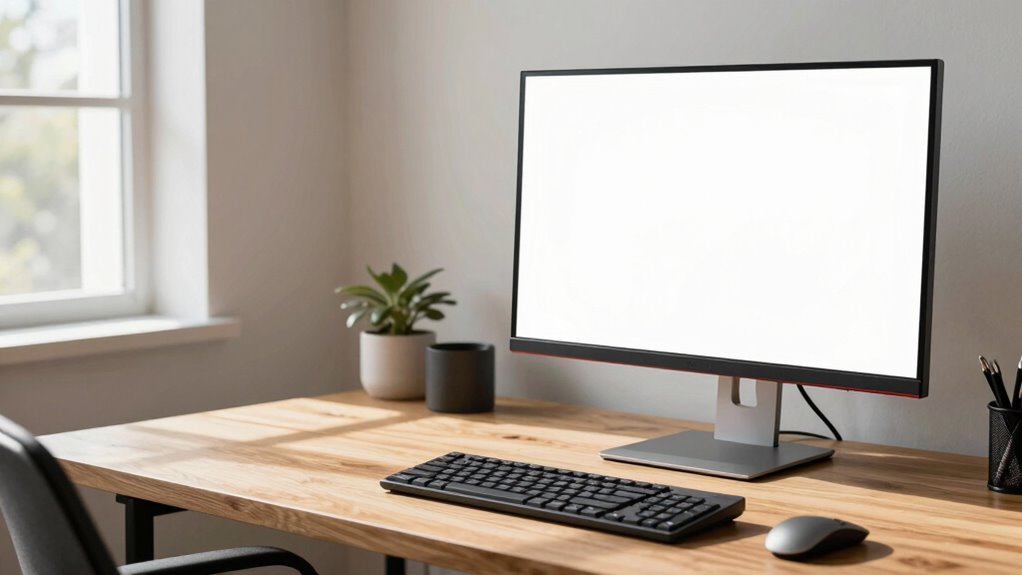

To prevent neck pain at standing desks, set your monitor so the top of the screen is at eye level, keeping your neck neutral. Measure the distance from your eyes to the monitor—about an arm’s length—and adjust the height accordingly. Using risers or monitor arms can help fine-tune this setup. Consistently maintaining this height reduces strain and promotes comfort during long work sessions. If you want to learn more about precise heights and ergonomic tips, keep exploring the details.

Get decor and gifts delivered free — and shop member deals
- Fast, free delivery on millions of items
- Access to Prime Big Deal Days deals on October 6–7
- Prime Video, Amazon Music and more included
Key Takeaways
- Ensure the top of the monitor aligns with your eye level to maintain a neutral neck position.
- Adjust the monitor height so your eyes look slightly downward at the screen, reducing strain.
- Use ergonomic accessories like adjustable stands or monitor arms for precise height customization.
- For standing desks, set the monitor so the screen is at or just below eye level when standing upright.
- Regularly check and fine-tune monitor height to adapt to movement and prevent neck discomfort.

Have you ever wondered if standing desks could improve your workday? If you’re considering making the switch or already have one, understanding monitor height is vital to prevent neck pain. When your monitor is positioned at the right height, you avoid straining your neck and shoulders, which is common when screens are too low or too high. To achieve this, you need to get the monitor height just right, aligning the top of your screen with your eye level. This way, you can look straight ahead without tilting your head up or down, reducing discomfort and fatigue over long hours.
Proper monitor height prevents neck strain and enhances comfort during long work hours.
One effective way to guarantee proper monitor height is by using ergonomic accessories. Adjustable monitor stands, monitor arms, or risers can make a significant difference. These accessories allow you to customize the height of your screen quickly and easily, fitting your unique ergonomic needs. If your monitor doesn’t have height adjustment features, a sturdy riser or an articulated arm can help you elevate the screen to the perfect position. This flexibility is essential because everyone’s body and workspace are different, and what works for one person might not work for another.
When it comes to desk conversion tips, consider how your desk layout influences your monitor placement. If you’re converting an existing desk into a standing desk, make sure the surface height allows your elbows to be at a 90-degree angle and your wrists straight when typing. Position your monitor about an arm’s length away, with the top of the screen roughly at eye level. If your desk isn’t adjustable, you can use ergonomic accessories like a monitor stand or a stack of books to raise your screen to the appropriate height. Keep in mind that your goal is a neutral neck position—neither craned up nor slumped down. Additionally, understanding ergonomic principles can help optimize your entire workspace for comfort and health.
It’s also important to check your posture regularly. Even with the right monitor height, you may notice yourself leaning forward or tilting your head. Adjust your monitor and workspace setup as needed to maintain a natural, relaxed posture. Remember, proper monitor height isn’t just about comfort; it’s about preventing long-term issues like neck pain, tension headaches, and shoulder strain.
As an affiliate, we earn on qualifying purchases.
Frequently Asked Questions
How Do I Adjust My Monitor for Multiple Screen Setups?
To adjust your monitor for multiple screen setups, start by aligning each monitor at eye level for ideal ergonomic placement. Position them so the top of each screen is roughly at your eye height, maintaining a slight tilt if needed. Make certain all screens are directly in front of you to reduce neck strain. Keep a consistent monitor alignment, spacing them evenly, so your neck and eyes stay comfortable during extended use.
What Are the Best Ergonomic Accessories for Standing Desks?
You might find ergonomic footrests and adjustable monitor arms are your best allies for standing desks. Footrests support your posture and reduce fatigue, while adjustable monitor arms let you customize screen height and angle, preventing neck strain. Research shows these accessories can notably boost comfort and productivity. So, investing in quality ergonomic accessories helps you stay healthy and focused throughout your workday, making your standing desk setup truly effective.
How Often Should I Change My Standing Desk Posture?
You should change your standing desk posture every 30 to 60 minutes to prevent strain. Incorporate ergonomic chair choices and adjust your desk height customization to keep your neck aligned and comfortable. Regularly shifting positions helps reduce fatigue and discomfort. Remember to alternate between sitting and standing, and make small adjustments to your monitor and keyboard angles for ideal ergonomics throughout the day.
Are There Specific Exercises to Complement Standing Desk Use?
Think of your body as a finely tuned instrument—you’ll want to keep it in harmony. Incorporate ergonomic stretches like shoulder rolls, neck tilts, and hamstring stretches throughout your day. These exercises act as posture reminders, preventing stiffness and fatigue. Regularly pause to do these stretches, and you’ll boost circulation, reduce strain, and make standing at your desk feel more natural and comfortable.
How Do I Prevent Fatigue During Long Standing Periods?
To prevent fatigue during long standing periods, wear ergonomic footwear that supports your feet and reduces strain. Use anti-fatigue mats to cushion your legs and lower back, helping you stay comfortable longer. Take regular breaks to stretch and shift your weight, and maintain good posture. These small adjustments make a big difference in reducing fatigue, keeping you energized and focused throughout the day.
Conclusion
By finding the perfect monitor height, you’re tuning your workspace like a skilled musician hitting every note. When your screen aligns just right, your neck feels the gentle breeze of relief, not the storm of strain. Think of your desk setup as a compass guiding you toward comfort and health, turning your daily work into a dance rather than a battle. Embrace this balance, and watch neck pain fade like morning mist under the rising sun.
Fall Picks
fall essentials
As an affiliate, we earn on qualifying purchases.